How to add business to Google Maps: go to business.google.com/add, sign in with a Google account, enter your business name and category, choose whether customers visit you or you visit them, add your phone number and website, then verify. It’s free, and Google reviews your verification within five working days before your listing shows on Maps.
Adding the listing is the quick part. Getting it verified, set up as the right type of business and actually showing when customers search is where most small business owners get stuck. This guide covers all of it, using Google’s own current rules, with the UK details most guides skip. It’s the same groundwork I start from in my local SEO work in London.
Key takeaways
- Adding your business to Google Maps is free and done by creating a Google Business Profile.
- Search Google Maps first: if your business is already listed, claim it rather than creating a duplicate.
- If customers don’t come to you, hide your address and list up to 20 service areas instead.
- Google recommends video verification when it’s offered, and reviews take up to five working days.
- Being on the map is not the same as being found: category, photos, reviews and a matching website decide that.
How to add business to Google Maps: step by step

You add your business to Google Maps by creating a Google Business Profile and verifying it. Google’s add or claim your Business Profile page lists four short steps. Here’s the fuller version, with the choices that trip people up.
- Sign in with the right Google account. Use an account the business controls, not a staff member’s personal Gmail. You’ll need it every time you edit the profile.
- Go to business.google.com/add and select “Add your business to Google”.
- Enter your business name exactly as it appears in real life. Same as your signage, van and invoices. If Google suggests a match as you type, your business may already be listed (see the next section).
- Choose your primary category. Pick the one that describes your core business, not every service you offer.
- Say whether customers can visit you. Choose yes for a shop, office or clinic customers come to. Choose no if you travel to them.
- Add your address or service areas. A complete street address with unit or floor number, or the towns and postcodes you cover.
- Add your phone number and website. The website is optional, but it gives Google and customers far more to go on.
- Verify. Pick the method Google offers you and follow the on-screen steps. Your profile can show on Search and Maps once Google approves it.
Two of Google’s guidelines for representing your business matter most at this stage: represent the business as it’s consistently recognised in the real world, and choose the fewest categories it takes to describe your core business. Break them and the profile can be suspended.
Is your business already on Google Maps?
Search your business name and town on Google Maps before you create anything. Customers, or Google itself, may have added it already. If the listing shows “Claim this business”, select it, choose Manage now and verify it.
If someone else already verified it, such as a former employee or an old marketing company, don’t start a new profile. Request ownership from the current owner instead. Google allows one Business Profile per business, and it says a profile treated as a duplicate won’t show on Google Search or Maps. Creating a second listing to get round a stuck first one is one of the fastest ways to vanish from the map.
Shop front, service area or hybrid: which should you choose?
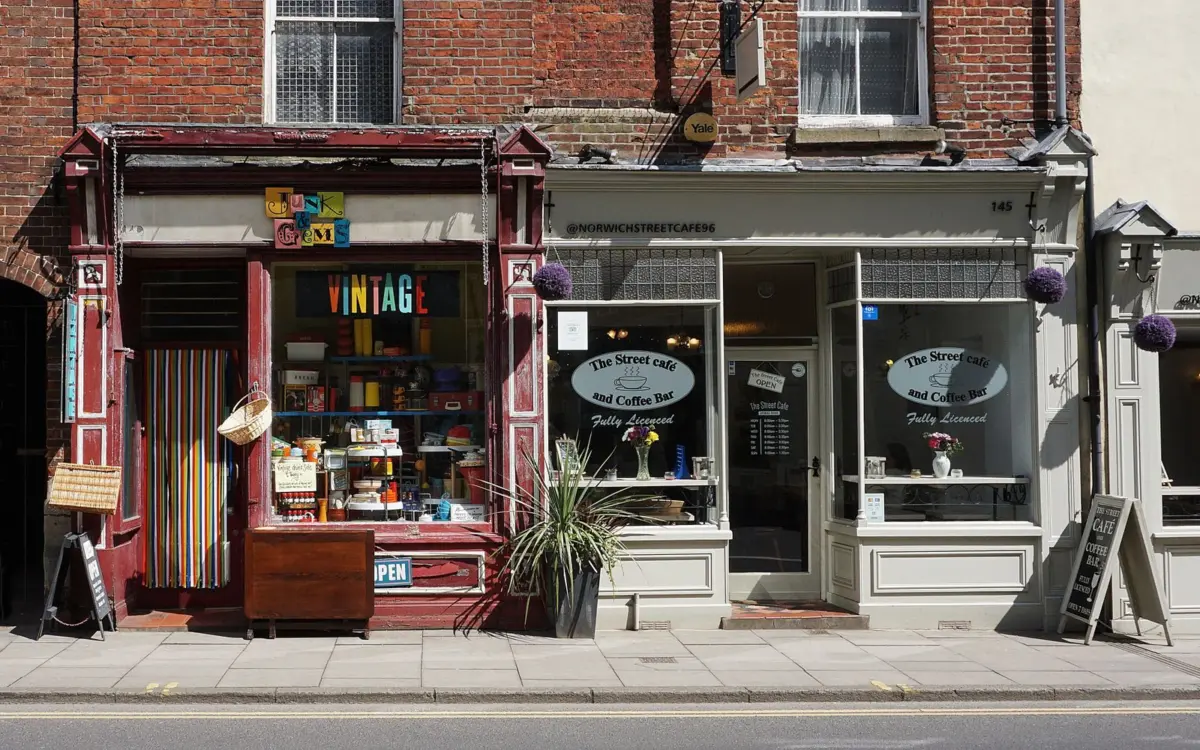
Choose based on where you meet customers. That one choice decides whether your address is public, what you enter on the form and what Google expects to see when you verify.
| Business type | Who it fits | Address shown? | What you enter |
|---|---|---|---|
| Shop front | Shops, cafés, salons, clinics and offices with permanent signage that customers visit | Yes | Full street address |
| Service area | Plumbers, electricians, cleaners, locksmiths, mobile hairdressers | No, hidden | Up to 20 towns, areas or postcodes |
| Hybrid | A restaurant that also delivers, a garage that also does call-outs | Yes | Street address plus service areas |
One rule catches a lot of London businesses out. Google says that if your business doesn’t have permanent on-site signage, it isn’t eligible as a shop front and should be listed as a service-area business. If you work from a co-working desk or a shared office with no sign of your own, that applies to you.
Can you put your business on Google Maps without showing your home address?
Yes. If customers don’t come to you, Google asks you to remove your address and show your service area instead. Your address is public on a Business Profile, so hiding it is the right setting for most trades and home-based businesses. Google’s service area rules are worth knowing before you fill in the form:
- You can add up to 20 service areas, set by city, postcode or another type of area.
- The overall area shouldn’t be more than about two hours’ driving time from where your business is based.
- You can no longer set a radius around your base.
- Approved service area changes can take up to 48 hours to show.
Be specific rather than greedy. For a plumber based in Clapham, a sensible list might be Clapham, Brixton, Battersea, Balham and Stockwell, not “London and the South East”. Listing where you genuinely work keeps the profile within Google’s rules and matches the searches you can actually win.
How do I verify my business on Google Maps?
You verify by completing whichever method Google offers you: phone or text, email, a live video call, post or a video recording. Google says the options are set automatically and can’t be changed, and depend on your business type, public information, region and opening hours. If video verification is offered, Google recommends using it.
How to pass video verification first time
A rejected video costs you days, so it’s worth getting right first time. Here’s a checklist based on Google’s video verification requirements:
- Record one continuous, unedited clip of at least 30 seconds, on your phone, through your Business Profile.
- Show where you are: street signs, the building number, neighbouring shops or familiar landmarks.
- Shop fronts and hybrids: show your shop front, showroom or business signage clearly.
- Service-area businesses run from home: film street signs and landmarks in your immediate neighbourhood, never empty land.
- Show that you run the business. Google lists “missing proof of authorisation to operate the business” as a reason videos fail, so include something only the owner could show, like opening up the premises or showing your tools and work equipment.
If a video is rejected, Google tells you why and lets you record a new one. After you submit, verification reviews take up to five working days, and occasionally longer. If you’ve already verified your website in Google Search Console, Google says it may verify your profile instantly.
How do I get my business on Google Maps from my phone?
On a phone, open the Google Maps app and search for your business name first. If it’s listed, select it, tap About, then Claim this business and Manage now, and follow the verification steps. If it isn’t listed, open business.google.com/add in your phone’s browser and follow the same steps as above. Video verification has to be recorded and uploaded from a mobile device anyway, so doing the whole thing on your phone is fine.
Stuck on verification, or verified and still invisible? That’s usually where doing it yourself turns into weeks of trial and error. In a free consultation I’ll look at your profile, your website and the businesses ranking above you, then tell you exactly what’s holding you back on the map. Book your free consultation here.
Which businesses can’t be added to Google Maps?
To qualify, a business must make in-person contact with customers during its stated hours. Google’s eligibility guidelines give these examples of businesses that aren’t eligible:
- Online-only businesses, brands, organisations and artists
- Rental or for-sale properties such as holiday homes (sales and letting offices are fine)
- Lead generation agents or companies
- Any business using a PO box or mailbox in a remote location as its address
- A class or meeting held at a venue you don’t own or have authority to represent
If you only sell online, a Business Profile isn’t the tool for you. Your website and its SEO have to do the work of getting found instead.
How long does it take for a business to show on Google Maps?
Verification reviews take up to five working days, and once verified your profile can show on Google Search and Maps. Ranking for searches like “electrician near me” takes longer, because now you’re competing with every verified business nearby. If you’re verified and still can’t find yourself, my guide on why a business is not showing on Google Maps walks through the usual causes and fixes.
How do you make your business come up on Google Maps once it’s added?
Adding the listing puts you on the map. Completing it and backing it up is what gets you found. Once you’re verified, work through this list:
- Fill in every relevant field: opening hours, services, description and real photos of your work.
- Keep your name, address and phone number identical on your website and every directory.
- Ask every happy customer for a review. My guide on how to get more Google reviews has the wording and links to use.
- Give each main service its own page on your website, so Google can match you to more searches.
- Keep the profile current with holiday hours, new photos and posts. My Google Business Profile management checklist covers the ongoing work.
Common mistakes when adding a business to Google Maps
These are the mistakes that most often stop a new listing from being verified or from showing up, and what to do instead.
| Mistake | Why it hurts | Do this instead |
|---|---|---|
| Adding keywords to the name, like “Smith Plumbing Emergency Plumber London” | Breaks Google’s real-world name rule and risks suspension | Use your name exactly as it appears on your signage and paperwork |
| Using a virtual office or PO box address | PO boxes and remote mailboxes aren’t eligible | Use your real base and hide it if customers don’t visit |
| Creating a second profile when the first gets stuck | Duplicates don’t show on Search or Maps | Claim or request ownership of the existing one |
| Showing a home address customers never visit | Against Google’s service area rules, and puts your home address online | Set up as a service-area business |
| Setting it up on someone else’s account | You lose control when they leave | Own it yourself and add others as managers |
| Picking lots of categories “just in case” | Google asks for the fewest categories that describe your core business | One accurate primary category, a few genuine extras |
What I would do if I were adding your business this week
When I build a website for a local business, I make sure it matches the Google Business Profile from launch: the same name, address and phone number, a page for each main service, and the areas covered mentioned naturally. If you’re starting from scratch, this is the order I’d follow:
- Day 1: search Google Maps for your business, then claim it or add it from a Google account the business owns.
- Day 1: choose the right business type and one accurate primary category, then verify by video if it’s offered.
- While you wait: write your description, list your services and take a set of honest photos.
- Once you’re live: send your review link to recent happy customers.
- Within the month: make sure your website backs the profile up with matching details and a page for each service.
Want more calls from Google Maps, not just a pin on it?
Knowing how to add business to Google Maps gets you listed. Turning that listing into calls and enquiries takes a website that backs it up and steady local SEO work. Whether you need a new WordPress website built to rank from day one, or monthly SEO and map results work on the site you already have, I’ll tell you honestly what would make the biggest difference first.
Book a free consultation, or call or WhatsApp me on 07404 145722. No jargon and no guaranteed rankings, just a clear plan to get local customers finding you and picking up the phone.
Frequently asked questions
Is a Google Business Profile free?
Yes. Google lets you add, claim and verify your business at no charge, and there is no fee to stay on Google Maps. Be wary of anyone who calls claiming you must pay to keep your listing.
How much does Google Business cost per month?
Nothing. A Business Profile is free to create, verify and manage every month. You only pay if you choose to run Google Ads or hire someone to manage the profile and your local SEO for you.
Is it worth having a Google Business Profile?
For any business that meets customers face to face, yes. It is how you appear on Google Maps and in the map results on Google Search, and it is where customers leave the reviews other people read before they call.
Can I run two businesses from the same address?
Yes, if they are genuinely separate businesses and each one is eligible. Google allows only one profile per business and can flag profiles at the same address as duplicates, so keep each business clearly distinct.
Do I need a website to add my business to Google Maps?
No, the website field is optional. But a website gives Google more information to match you to searches, and gives customers a reason to choose you over the next listing on the map.
Why can’t I verify my business on Google?
The usual reasons are an address that doesn’t meet Google’s guidelines, a business type that isn’t eligible, or a verification video that didn’t show enough. If a video fails, Google tells you why and lets you record a new one.